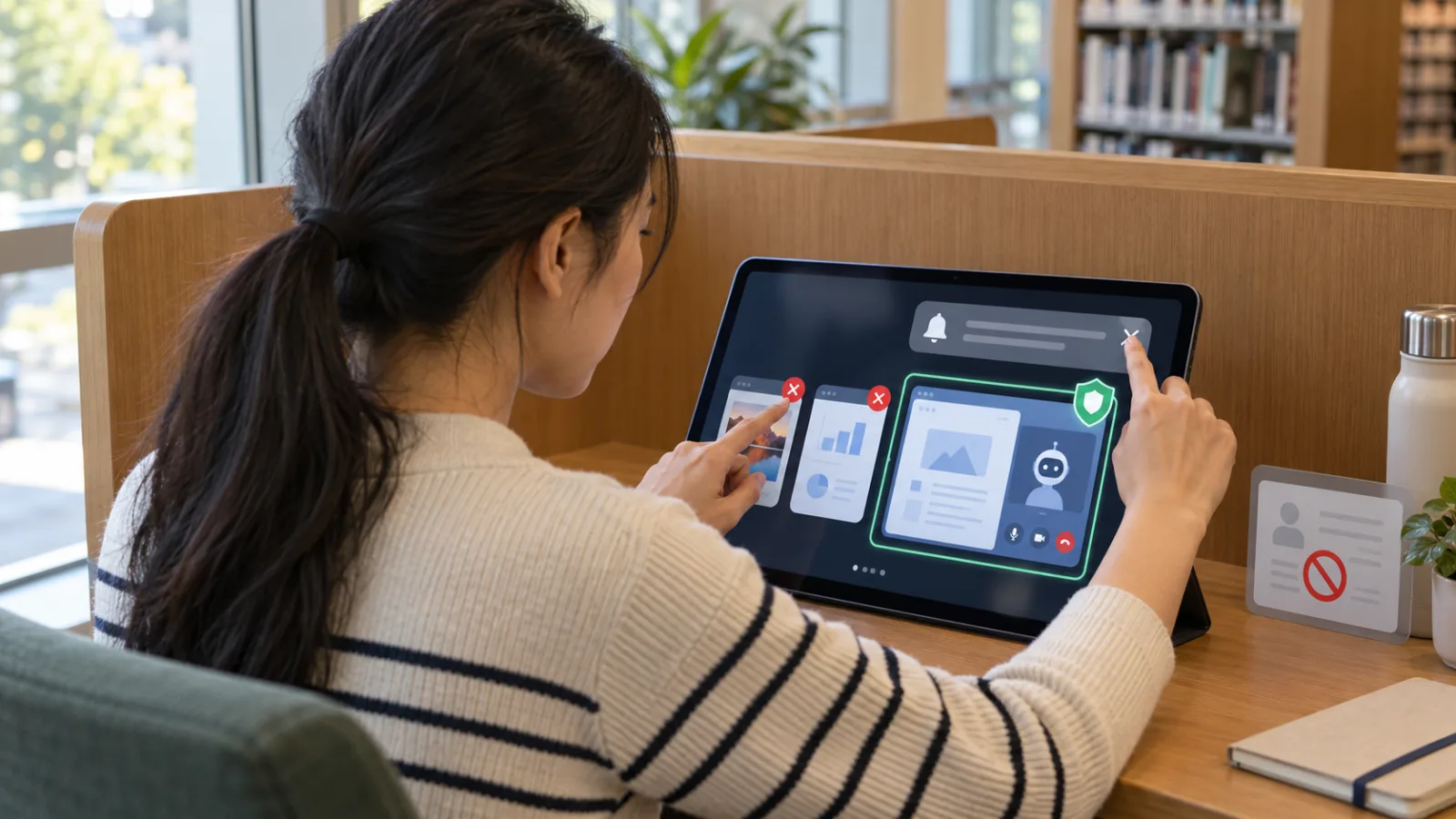
Gemini Live is no longer just about "talking to AI."
You can turn on your camera to show Gemini what’s in front of you, or you can share your phone’s screen directly so it can assist you by observing your display.
But before you hit the share button, learn this one simple step today:
Spend 10 seconds to do a "screen clear."
Why clear your screen first?
When you share your screen, the AI doesn’t just see the app you want to ask about.
Google’s explanation for Gemini Live is clear: once screen sharing starts, Gemini accesses the entire screen.
What’s easiest to overlook are the things on the side that you never intended to show the AI.
For example:
- Suddenly popping-up email or chat notifications
- Other clients’ names
- Phone numbers and emails
- Other open apps in the background
- Internal company documents
- Account info
- Verification codes
- ID cards or payment data
The issue isn’t "what the AI will do with this data."
The issue is:
If this info isn’t needed for your current task, there’s no reason to have it appear on screen in the first place.
Before you start sharing, just do these 3 steps
1. Hide notifications first
Before starting Camera or Screen Share, check notification previews.
If you will be working for a while, consider turning on Do Not Disturb mode to prevent emails, LINE, SMS, or other notifications from suddenly appearing on screen.
It’s not the notifications themselves you need to avoid.
It’s the content inside them that might reveal:
names, message details, orders, work data, or other private info.
2. Close unrelated apps and pages
Don’t have five or six apps open while sharing your screen.
Go straight to the page where you actually need AI’s help, and then start Screen Share.
For example, if you just want to ask:
“Where is this setting?”
then only keep the settings page visible.
Close emails, photo albums, banking apps, client files, or any other work windows.
Only give the AI what it really needs.
3. Don’t open sensitive pages while sharing
Passwords, one-time verification codes, full credit card numbers, ID cards, medical data, company secrets, or client data should not be casually opened just because AI is assisting you.
If the question really requires a small part of the info, try this instead:
take a screenshot, crop or hide unrelated content, then show AI only the necessary part.
Don’t lay everything out in full.
Do a final 3-second check
Before officially starting to share, ask yourself:
“If I accidentally swipe to another screen next, what would show up?”
If the answer still includes:
client info, private messages, payment info, or company data,
then don’t start yet.
Clear the screen again.
Why this method really matters
Many people using AI only think:
“Can it understand what I’m showing?”
But now that AI can see your camera, watch your screen, and operate apps, another question becomes more important:
Does it really need to see this?
So the best habit before Camera or Screen Share isn’t memorizing extra prompts.
It’s:
Remove any info you don’t need for this task from the screen first.
If you also want to find out which step in your workflow is best for AI assistance, comment “workflow.”