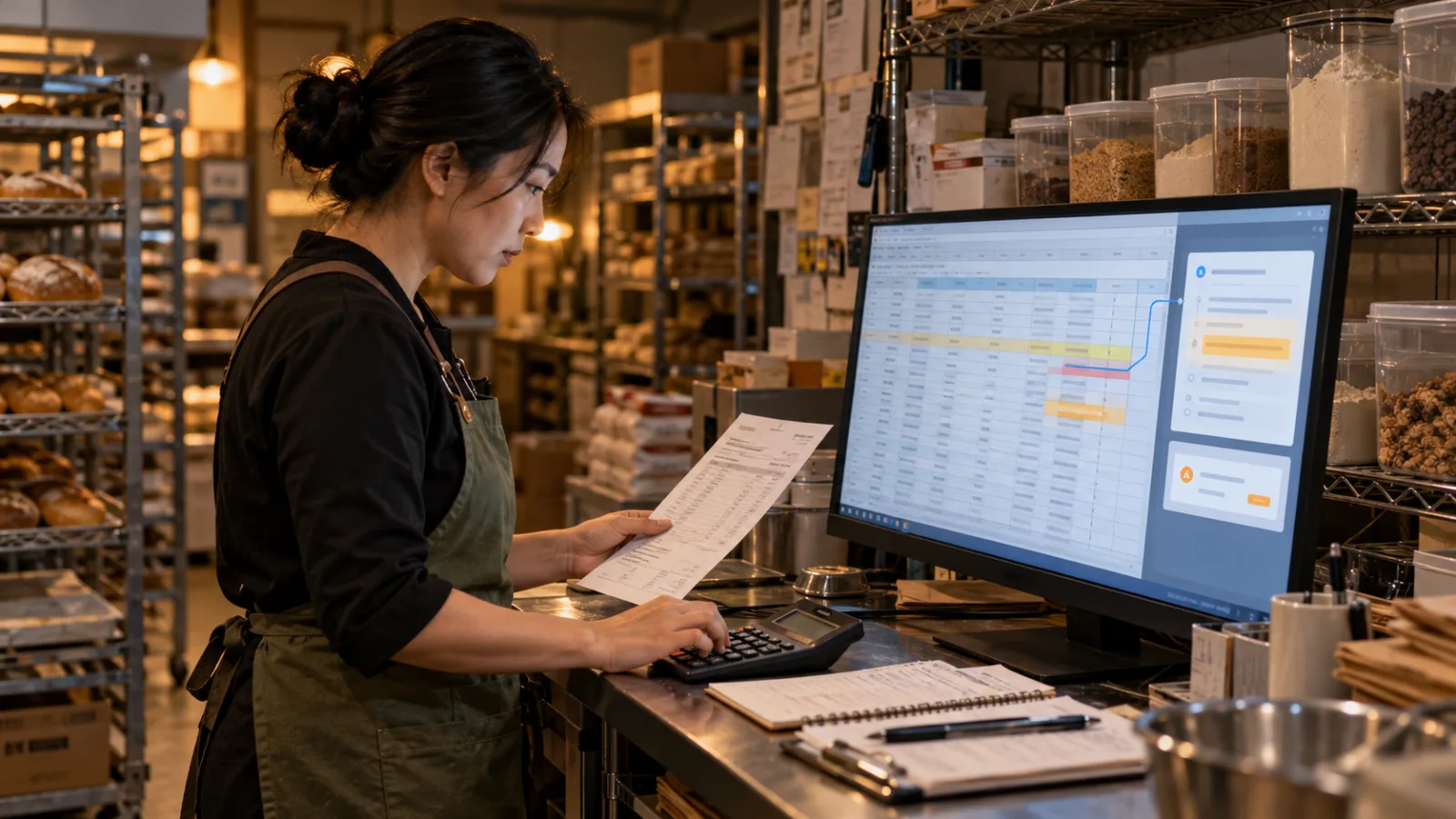
There’s a type of document that frequently appears in companies.
Everyone knows:
It’s very important.
But when it’s actually received,
the typical reaction is:
“I’ll look at it later.”
For example:
30-page new employee training.
40-page operation SOP.
Extensive meeting minutes.
Customer research reports.
Policy updates.
Product descriptions.
The real issue isn’t that:
The document doesn’t exist.
But rather:
The information is fully written, yet no one has the time to read it all.
Google Vids now offers a straightforward solution:
Turning the document itself directly into a:
Summary Video.
Previously, Google Vids could already use AI to generate videos.
Google Vids: AI Video Creation from Prompts
When SasaDaily introduced Google Vids on July 21,
it could:
Based on a prompt and Google Drive data,
Create:
Video outlines, scenes, scripts,
AI voiceovers,
assets,
and music.
So if you wanted to make:
Tutorial videos, proposal presentations,
or internal trainings,
you could start from:
“I want to make a video.”
But the new September feature solves a different problem.
You no longer have to:
Describe again what video you want to create.
You can directly say:
“This document is the source.”
Which Documents Can Google Vids Convert Directly?
According to Google, supported sources now include:
Google Docs, PDFs, and Microsoft Word documents.
These are many of the documents that already exist in companies, such as:
Reports, SOPs, meeting notes, training files, and manuals.
All can now be turned directly into:
Video summaries.
This change might seem minor,
but it actually lowers the barrier to video production significantly,
because most companies don’t lack content,
but rather:
All the content lies buried inside documents.
It’s Not Just Recording Pages One by One
This distinction matters.
Document-to-video is not about:
Showing page one for five seconds,
page two for five seconds,
page three for five seconds.
Instead, Google’s approach is:
The AI first creates a:
Script
based on the document.
Then it breaks the script into different:
Scenes.
Next, it adds:
AI narration and relevant visuals.
So the real process is:
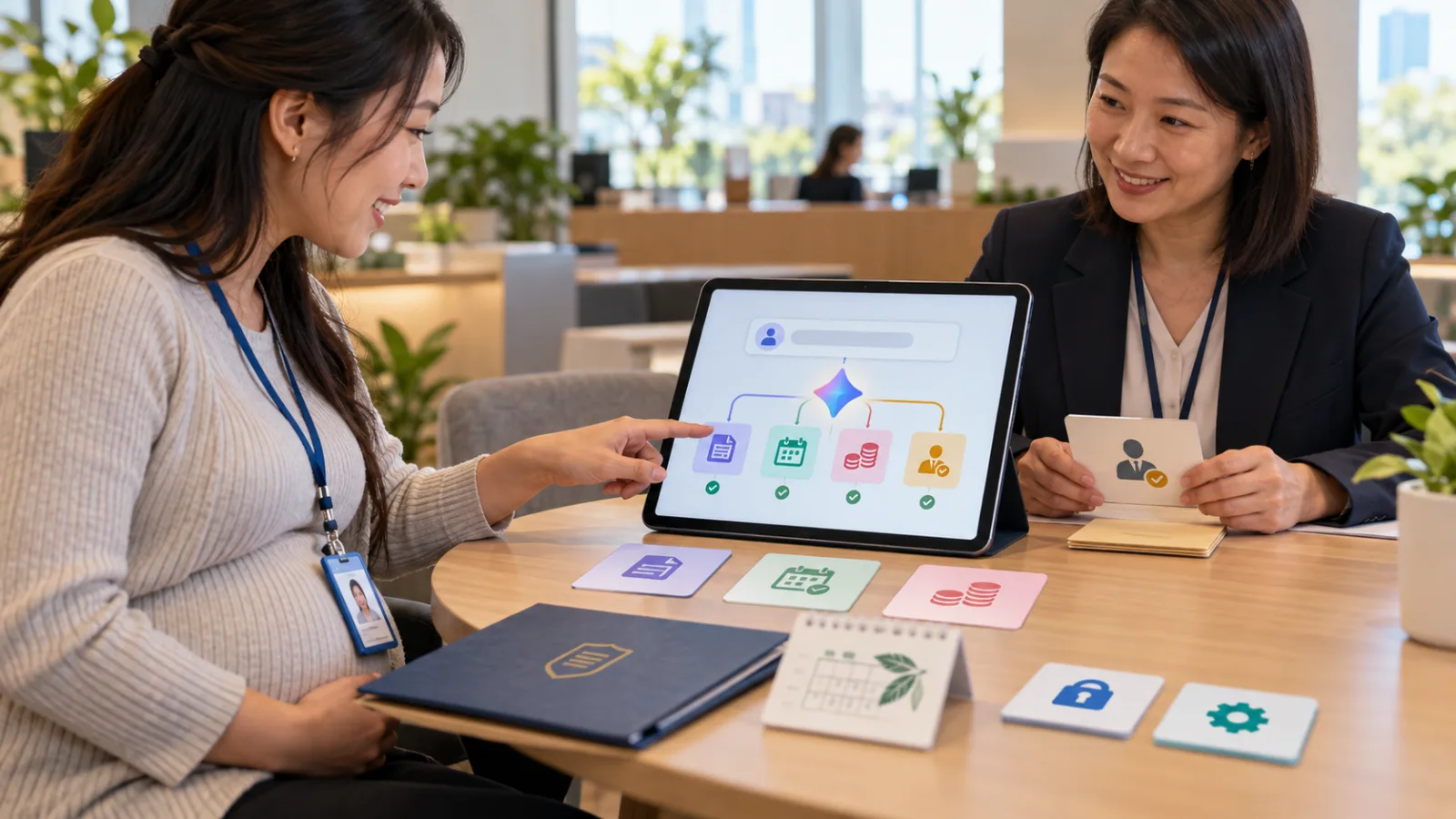
Document → Summary Script → Scenes → Narration → Video.
Not simply:
PDF slideshow.
Simple Workflow
Open Google Vids on your computer.
Go to:
File
Select:
Convert Docs.
Choose Google Docs, Word, or PDF,
then click:
Next.
The most important step isn’t to immediately:
Generate,
but to:
First review the AI-generated script.
AI Breaks Documents into Scenes
For example, if you have a 20-page new employee training document including:
Company introduction, work procedures, customer service principles, data security, leave policies, and common mistakes,
Google Vids might organize it into several major scenes:
Scene 1: What this job entails.
Scene 2: Daily basic workflow.
Scene 3: How to handle customer data.
Scene 4: The three most common errors.
Scene 5: Who to contact during exceptions.
This is far more useful than playing the 20 pages one by one.
Edit Scripts Before Generating Videos
This is very important.
Google currently allows you to:
Delete sections, directly edit text, adjust scene content, and choose AI voiceover voices before generation.
So a better workflow is not:
Upload document → Generate → Accept whatever AI produces,
but rather:
Upload document →
Review what key points it has selected.
Delete unnecessary parts, add missing important points, confirm voiceover, then generate.
This review step is actually more important than the mere ability to auto-generate videos.
Summaries Always Mean Some Information Is Removed
A 30-page document turned into a 3-minute video cannot keep every sentence.
The real question is not:
“Did it convert everything completely?”
But rather:
“Was what it cut out really removable?”
These two concepts are very different.
For Example, a Safety SOP
The original might include operating steps, warnings, emergency stop procedures, exceptions, and legal requirements.
If the AI shortens background explanations, that might be okay.
But if it omits critical warnings like:
“In this situation, stop immediately,”
that video shouldn’t be published as is.
So:
Always compare the summary video with the source document.
Which Content Is Best to Convert First?
First category:
New employee training.
Instead of dumping a large PDF on day one,
offer a 5-minute summary video
so they can grasp what the document covers.
The video doesn’t replace the full SOP,
but:
Serves as a roadmap.
Second Category: Meeting Notes
For example, a 90-minute project meeting.
The meeting notes are already documented after the fact,
but people who didn’t attend might not read an 8-page note.
A short summary video can condense:
What happened, what decisions were made, and what’s next.
The video functions as a:
Quick catch-up,
not the formal meeting record.
Third Category: Long Reports
Like industry research, monthly operations, market analysis, or consultant reports
which might normally require 15-30 minutes to understand.
The video highlights the top three key points.
Viewers can then deep-dive into the original document if needed.
This:
Video → Document
approach suits busy people better than diving straight into a 50-page PDF.
Fourth Category: Work Instructions
For instance, updated procedures for invoicing, expense claims, new CRM operation, or internal workflows.
Previously, people might get an email saying:
“Please see the attachment,”
only to find no one has finished reading it a week later.
A 3-minute explanation video makes it easier for employees to understand what changed and who needs to act.
Which Documents Are Unsuitable for Summary Videos Alone?
Contracts, legal terms, official price lists, financial data, medical protocols, or high-risk safety regulations.
These can have overview videos,
but you can’t treat a:
“Summary” as an:
“Authoritative original text.”
Because summaries inherently compress information.
Example: Contract with a Single Exception Clause
A 25-page contract’s video might cover cooperation period, payments, deliveries, and termination,
appearing comprehensive.
But the rights-impacting detail could be a single sentence like:
“If this situation occurs, previous terms don’t apply.”
If the summary excludes it, the video still looks fine but misses critical info.
Hence, important docs require clarity:
Video for understanding,
original text for confirmation.
Similar to Yesterday’s Docs Live Issue
We discussed how an initial Docs Live draft might look complete,
but that doesn’t guarantee all facts are accurate.
Google Vids applies the same principle.
AI can:
Organize, compress, and re-express content well,
but:
Well-organized
doesn’t equal
All key details retained.
Recommendation: Don’t Start with the Most Critical Files
Don’t immediately load company contracts, official regulations, or highly sensitive safety docs.
Start with:
Low-risk files you’re very familiar with,
like a tutorial you wrote, a familiar job description, or internal event summaries.
Knowing the original text lets you assess how well AI summarizes.
Four Quick Checks for Initial Tests
First:
Did it capture the main topic?
After watching, will viewers understand the document’s purpose?
Second:
Is any crucial content omitted?
Watch out for warnings, restrictions, exceptions, and conditions.
Third:
Does narration overstate certainty?
If the original says “recommend,” the video shouldn’t say “must.”
Fourth:
Could the visuals mislead?
AI-generated imagery might not accurately reflect the actual equipment, people, places, or procedures.
So that needs review.
What’s Most Noteworthy About Google Vids?
It’s not simply:
“AI can now make videos.”
AI video tools have existed for a while.
What’s unique is:
It turns:
Existing company documents
directly into video sources.
This transforms what used to require:
Writing new scripts, finding assets, recording voiceovers, and editing videos
into:
Automatically generating a first draft from the original document.
This has the potential to change not movie-making, but
the huge volume of company content that was never made into videos before due to the effort required.
Smaller Companies Might Feel the Impact Most
Large corporations have dedicated training teams, video teams, and instructional designers.
But a company with 5 or 10 people often doesn’t.
Bosses know new hires would benefit from a training video, but:
Who writes the script? Who records the voice? Who does the editing?
So the default becomes:
“Just give them the PDF.”
If Vids can turn existing SOPs directly into first draft training videos,
the barriers drop significantly.
And Business Starter Plans Are Included
Google’s rollout covers:
Business Starter, Business Standard, Business Plus,
Enterprise Starter, Enterprise Standard, Enterprise Plus,
Education Plus, Nonprofits, eligible Education Add-ons,
as well as AI Plus, Pro, Ultra consumer plans.
Including Business Starter makes this feature much more accessible for small businesses.
No Immediate Function in Your Account? Don’t Worry
Google has two rollout schedules:
Rapid Release Domains already have access,
while Scheduled Release Domains began gradual rollout on:
September 5, 2026,
which is today.
Google estimates up to:
15 days
until all eligible accounts see the feature.
If you don’t see Convert Docs in Vids today,
it doesn’t mean you’re ineligible;
it may just not have rolled out to your domain yet.
No Separate Admin Controls for This Feature
Officially, there is no dedicated:
Admin control or end user setting.
Eligible accounts receive the function automatically as it rolls out,
without needing to toggle “enable document summary videos.”
Actual availability still depends on your Workspace plan, domain rollout timing, and account environment.
After Generation, You Can Still Edit, Share, and Export
The summary video is a:
Continuously editable Vids project,
not a one-time generated video file you either accept or discard.
This means:
The AI-generated video is better treated as:
Version 1, not the final product.
For Internal Company Videos, Pay Special Attention to Three Scene Types
First:
Scenes involving numbers.
Percentages, deadlines, quantities, costs.
Second:
Scenes describing sequential actions.
Step A then step B.
Errors here could cause real problems.
Third:
Scenes with restrictions or conditions.
Prohibitions, mandatory steps, exceptions, supervisor approvals.
These are easiest to lose important details during summarization.
Smoother Videos Can Make People Less Cautious
A PDF looks formal and everyone knows it’s a document.
But AI videos with narration, transitions, and polished visuals sound natural,
making audiences more likely to think:
“This is the final answer.”
Companies adopting this tool must clearly define what is the:
Summary,
and what is the:
Source of Truth.
Keep Original Documents in Your Workflow
For example:
Video:
Helper for new hires to understand basics.
Original SOP:
Reference for official operations.
Video:
Quick catch-up for supervisors.
Full report:
For final decision-making.
Video:
Overview of policy highlights.
Official policy file:
For exception handling.
Only then can AI video’s advantages be truly realized.
The goal is not to replace full reading,
but to reduce the time spent on:
“I don’t even know what this document is about yet.”
How Does This Differ from the July 21 Google Vids Article?
That article answered:
What is Google Vids?
and how to use AI to plan a video from scratch.
Today’s focus is:
If the video content is already in a document, do you still need to write a script?
Now:
Not necessarily.
Google Vids can turn Google Docs, PDFs, and Word files directly into a first draft summary video.
This is today’s real new capability.
Try a Small Test Today If You Have the Feature
Find a document you are familiar with,
5-10 pages,
and with no sensitive info.
Open Google Vids,
Use Convert Docs,
Select the file,
Don’t generate immediately.
First, review how many scenes AI creates,
Then ask yourself:
“If someone who never read this document only saw these scenes, would they get the core understanding?”
If yes, generate.
If no, edit the script first.
This approach saves much more time than editing the entire video after it’s generated.
What Google Vids Really Lowers Is the Cost of Turning Existing Knowledge into a Different Format
Previously, after documents were done,
making a video meant redoing a content project.
Now, it might look like:
Document
↓
AI summarization
↓
Script
↓
Scenes
↓
Voiceover
↓
First draft video
This is a fundamentally different AI productivity use case.
It doesn’t invent new knowledge for you,
but rather:
Transforms the knowledge you already have into a more easily absorbed format.
For many companies,
this is more practical than developing a new chatbot,
because companies generally don’t lack documents.
The real shortage is:
People willing to finish reading those documents.
Today, take a step forward with AI.
Learn one AI skill daily.
Save a bit of time every day.
Improve a little more every day.
SasaDaily, growing with you.