With the launch of ChatGPT Images 2.6, you can now turn product photos, illustrations, or characters into short looping GIFs.
This is very useful for small business owners or social media managers: turning a still product photo into a rotating, flashing, or moving showcase helps grab more attention.
However, if you just input a command like "make this an animated GIF," the result often is:
objects moving erratically, the product getting distorted, or a jarring jump when the animation loops back to the first frame.
The issue is usually not the tool but unclear instructions. Before giving commands, just think of these 3 points.
Step 1: Clearly Identify the "Main Subject"
What is the most important element in the GIF? Specify it clearly.
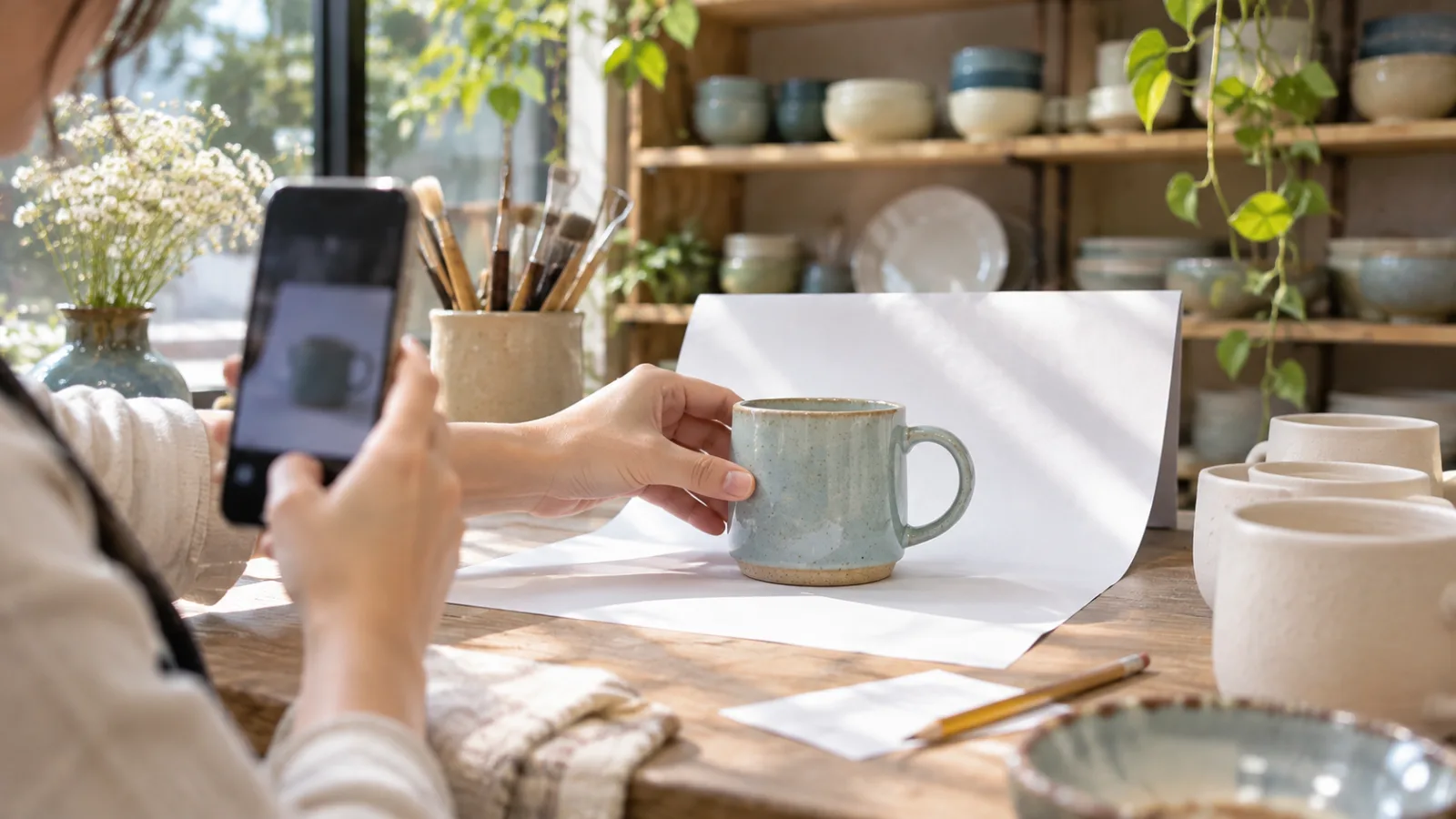
For example: "The main subject is this light blue mug in the photo."
Then add what must not change:
- The product’s shape, color, and design must remain unchanged.
- The hand-drawn pattern on the mug should be preserved exactly.
- The background stays white with nothing added.
Clearly stating the main subject and what must not be altered helps the AI avoid messing up your product’s appearance.
Step 2: Specify Only One "Action"
The more actions you ask for, the more mistakes are likely.
If you’re new to this, start with just one simple action, such as:
- The mug slowly rotating one full turn.
- A small puff of steam rising from the mug’s opening.
- The background light slowly flickering.
You can also specify speed, e.g., "slowly" or "one full rotation in about two seconds."
If you want more effects, add them one by one after the first version succeeds.
Step 3: Define the "Loop Point" Clearly
A GIF repeats continuously, so the last frame must smoothly connect back to the first frame.
Include in your instructions:
"The last frame should match the angle of the first frame so that the animation loops seamlessly without a jump."
This step is easy to overlook but determines whether your GIF looks professional.
Combine These 3 Points Into One Command
Here’s a sample instruction you can adapt for your own product:
Please turn this photo into a looping GIF. The main subject is the light blue handmade mug in the photo, and its shape, color, and hand-drawn pattern must not be changed. The background should remain white. There is only one action: the mug slowly rotates in place, completing one turn in about two seconds. The last frame must match the angle of the first frame so it loops naturally without any jump.
What to Check After the GIF Is Created
Spend 30 seconds reviewing the AI-generated GIF before use:
- Is the product distorted? Does its shape, color, and design look identical to the real item?
- Are any text or logos misplaced? AI often messes up text or logos on products.
- Is the looping smooth? Watch it several cycles to see if there’s any jarring jump back to the start.
If the product noticeably differs from the real item, do not use it as a product showcase image to avoid misleading customers.
Who Can Use This Feature?
According to TestingCatalog, ChatGPT Images 2.6 is rolling out globally and is available to all paid ChatGPT plans on desktop, mobile, and web.
The report doesn’t clarify if free users have access, so check your own ChatGPT to confirm.
Also note: using other brands’, mascots’, or copyrighted characters to create GIFs for business could infringe on copyright. It’s best to use your own products and images.
The Most Important Tip Today
When asking AI to create an animated GIF, first specify the main subject, limit to one action, and define how the loop connects back to the start; then always verify the GIF against the real product.
Source: