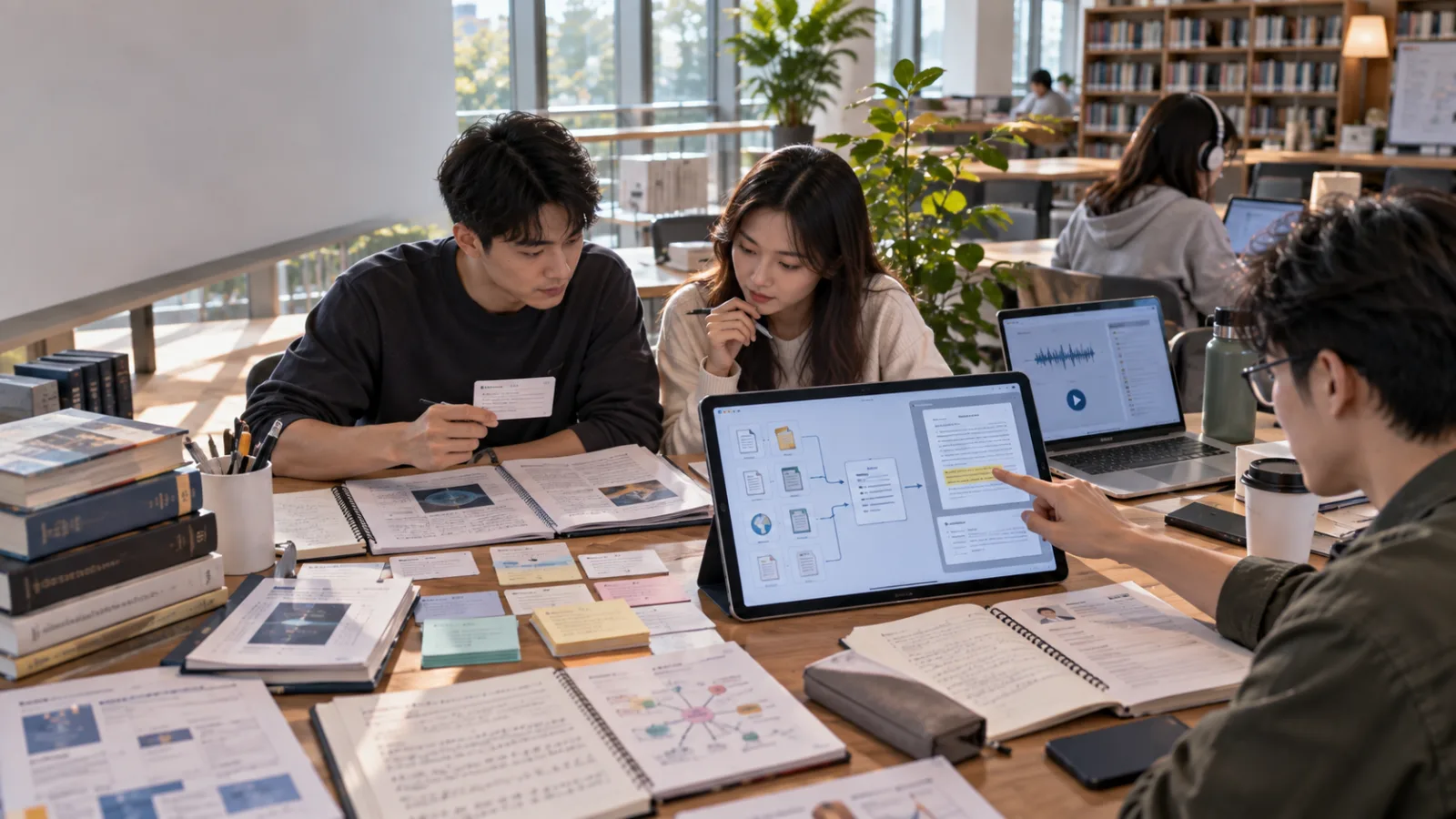
What students currently have an abundance of:
It’s not data.
One course might include:
Professor's PDFs.
Lecture slides.
Handwritten notes.
Textbooks.
Supplemental articles.
Website links.
Pre-exam key points.
Even classmates’ collected materials.
The real trouble is:
All these materials are scattered in different places.
Before exams, students start:
Flipping through PDFs.
Looking for notes.
Reorganizing everything.
Making their own flashcards.
Creating practice questions.
Most of their time is spent:
Deciding what to study.
Instead of:
Actually understanding the material.
Adobe now aims to change this by using:
Acrobat Student Spaces
to gather everything into:
One AI-powered learning space.
Student Spaces began beta testing in spring
In April this year, Adobe launched Student Spaces Beta.
By September, Adobe reported over:
1 million monthly active users during the beta phase.
Now it’s officially available worldwide.
This isn’t:
A completely new and unfamiliar AI chatbot.
Instead, it’s built directly into:
Acrobat,
which students already frequently use to:
Open PDFs.
View course materials.
Submit assignments.
Simple setup: Put one course into a dedicated Space
For example, if you’re taking:
Introduction to Psychology,
you can create:
a Psychology Student Space.
Then upload:
Lecture PDFs from your professor.
Your own notes.
Assigned readings.
Website links.
Copied text fragments.
You no longer need to open each file separately.
Instead, study directly in one Space.
Its first useful feature: turning study materials into flashcards
Say your professor provides:
40 pages of lecture slides.
You don’t have to:
Rewrite questions and answers yourself.
Student Spaces can automatically generate:
Flashcards based on your course materials.
For example:
One card might pose a concept question,
and the back contains the answer.
The key difference is:
The flashcards are generated from your own course content.
The new flashcard feature also tracks your answers
Adobe has added:
Answer tracking.
The system knows:
Which questions you’ve mastered,
and which require more practice.
It then:
Adjusts the study focus to your weaker areas.
So flashcards are no longer about:
Going through all cards once from start to finish,
but rather,
Repeatedly practicing weak points.
Quizzes follow the same principle
For instance, if:
You have an Organic Chemistry exam next week,
you upload the exam scope materials into Student Spaces,
then ask it to:
Generate a practice quiz.
Take the quiz once,
and identify concepts you consistently get wrong.
Then focus your review just on those parts.
This is very different from simply telling AI:
"Make me 20 chemistry questions."
General AI might rely on:
Its own built-in chemistry knowledge.
Student Spaces creates questions based on:
The exact course materials your professor provided.
You can also create study guides directly
If a chapter has:
80 pages,
Student Spaces can generate a:
Study guide
that organizes:
Key concepts.
Relationships between topics.
Content you need to master.
You can then decide:
Which parts warrant deeper reading of the original content.
This works like:
Getting a learning map first,
then diving into the details.
Mind maps help visualize connections
Sometimes,
Summaries alone don’t clarify relationships, such as:
How one theory links to another,
Or how a historical event triggered subsequent events.
Student Spaces can arrange materials into:
Mind maps,
showing how concepts connect.
Prefer listening? Turn materials into podcasts
Adobe also includes:
Podcast generation within Student Spaces.
It can convert your course materials into:
Two AI speakers discussing the content.
Great for:
Commutes, walks, or when staring at a PDF isn’t convenient.
You can review via listening first.
Video summaries are available too
For materials needing:
Visual explanations,
flows, or imagery,
you can create:
Video summaries.
Adobe also lets you edit video summaries:
Adjust questions, topics, themes, and narration.
You’re not stuck with the first generated version.
But the most valuable feature isn’t flashcards — it’s citation
Ask a question like:
"Why does the author believe this theory failed?"
Student Spaces provides:
Answers accompanied by citations.
Clicking the citation takes you:
Back to the original source
so you can see where the answer came from.
This is vital for learning.
Having an answer and knowing its source are very different
If AI says:
A study found:
X,
students may just memorize X.
That might work for exams,
but when writing reports, papers, or assignments,
you need to know:
Exactly what the source said
and the context around it.
Did AI oversimplify?
Student Spaces encourages you to:
Get explanations, then verify with the original source.
Not just blindly trust AI.
Adobe plans to support formal citation formats
Soon, Student Spaces will support:
APA, MLA, Chicago,
and other citation styles.
Users can input:
Title, URL, DOI, ISBN,
to help generate properly formatted citations.
This will be useful for essays, research papers, and reports.
But note:
Correct citation formatting does not guarantee reasonable content usage.
You still need to verify sources yourself.
Another practical new function: digitizing handwritten notes
Many students still take notes by hand in class, especially for:
Math, engineering, medicine.
When the professor lectures quickly,
notes go straight onto paper.
The problem is:
Content in PDFs can be searched by AI,
but paper notes stay stuck on paper.
Now, Student Spaces can:
Upload your handwritten notes,
and convert them into searchable digital text.
This means handwritten notes can join the learning workflow
For example:
After class, take a photo of your notes,
convert to text, and
let Student Spaces combine them with:
Professor’s PDFs to create:
Flashcards, quizzes, study guides, etc.
This adds your own class-taken content
into the AI learning context,
making it more personalized than just relying on original materials.
Before exams, generate summary sheets
Adobe also added:
Summary sheets
that can be half a page, one page, two pages,
or varied lengths.
Say your professor allows:
One A4 sheet for the test,
AI can make an initial summary,
then you edit,
remove, or rearrange information,
keeping only what you’re most likely to forget.
But don’t treat AI-generated cheat sheets as complete exam scopes
This is crucial.
A summary means:
Someone chose
what’s important,
and what can be skipped.
AI does this too.
If the professor emphasizes:
A specific exception, formula, or figure always tested,
but AI’s summary cuts it out,
you might miss it.
The safest approach is to:
Use AI to condense, then cross-check with the original exam scope.
Student Spaces is also extending support to job preparation
Students need more than exams,
they need internships and first jobs.
Adobe now offers AI assistance in:
Resume feedback,
Interview preparation,
such as:
Upload your resume,
and get feedback on clarity, experience presentation, and job relevance.
You can also:
Simulate interview questions with AI.
So it aims to be more than just an AI study tool
From course material,
to exams, group projects, presentations,
all the way to resumes and interviews,
Adobe wants to keep students’ substantial document work:
Within Acrobat.
Group projects can share one Student Space
You can share a Student Space with classmates,
collaboratively adding:
Sources, notes, and study materials.
Permission levels include:
Contributor, reviewer, and view-only.
Importantly,
Chat histories aren’t shared.
Each person can ask their own questions privately.
Shared is the knowledge space, not individual AI conversations
For example, four students working on one research report
share the same sources:
Student A asks about historical context,
Student B about statistical methods,
Student C about counterarguments.
They don’t mix their personal conversations.
This design suits collaborative learning well.
One Student Space can hold many files
According to Adobe FAQ, a Space can organize up to approximately 100 files.
So it’s not just:
Uploading one PDF and asking questions.
It’s more like a:
Course, research, or project
creating a small:
Knowledge space.
This sets it apart from typical PDF chat tools
Typically, users upload one PDF,
ask for a summary,
get an answer,
and stop.
Student Spaces hopes the entire:
Learning process
stays inside one place, including:
Sources, chats, notes, flashcards, quizzes, study guides, summaries, podcasts, and videos,
all related to the same set of materials.
But it is quite similar to Gemini Notebook
This is an important point.
Gemini Notebook also:
Collects sources,
Grounds answers,
Generates audio overviews,
and cites sources.
SasaDaily covered this back in late August.
So just saying,
"Adobe can upload files and ask AI"
isn't new.
What’s unique about Student Spaces: preset tools aligned with student tasks
Flashcards, quizzes, study guides, summary sheets, presentations, resumes, interviews—
these aren’t features you have to figure out prompts for each time.
They’re designed as:
The student workflow,
making this distinctly an:
Education product,
not merely a general-purpose research notebook.
But there’s an important current limitation: not for all student age groups
Adobe’s official FAQ states Student Spaces is targeted at:
Higher education and early-career students
Users must be:
18 years or older,
and use a:
Free personal Adobe account.
So don’t assume "student" means:
Elementary, middle, or high school students can all use it yet.
It’s currently not available for these groups.
Institution-provided Adobe accounts might not support Student Spaces
Adobe FAQ also clarifies:
Institution-purchased Adobe accounts are not yet fully supported.
If your school account doesn’t show Student Spaces,
you might need to create a separate free personal Adobe account.
Adobe plans to add institution-wide support in the future,
so this is something to check before school-wide adoption.
Language support is also limited
Student Spaces is offered worldwide,
but currently primarily in:
English.
Adobe says:
Other languages will roll out over time.
So whether Chinese-language materials get the same features and quality as English ones
cannot be assumed yet.
This is a real limitation for students using Traditional Chinese materials right now.
On mobile, Android is ahead of iPhone
Adobe has integrated Student Spaces into:
Acrobat for Android.
Currently, Android users can use it,
but iOS users do not yet have access.
If you primarily use iPhone or iPad,
you can’t yet transfer the Android experience directly.
"Free" doesn’t mean unlimited AI capabilities forever
Adobe lists flashcards, quizzes, study guides, and other standard study tools as free to use,
but they’re subject to fair-use limits.
Advanced features like podcasts, presentations, and video summaries depend on your account type and plan.
So accurately put,:
Student Spaces offers a free student gateway,
but not all AI features are unlimited free.
How to get started best?
Don’t upload four years’ worth of courses on day one.
Start with:
One course.
For example, the upcoming exam course:
Introduction to Biology.
Upload only:
Professor’s assigned lectures, readings, and your notes.
Then ask three things to begin.
First: Generate a study guide
Get an overview of the exam scope,
and create an overall topic map.
Second: Take a quiz
Complete a quiz,
then identify which parts you got wrong most.
Don’t just reread everything equally.
Third: For incorrect questions, always check citations
Read the original text to confirm whether:
You truly don’t understand,
AI explanation is wrong,
or the material has exceptions.
This completes a true learning loop.
So the best use of Student Spaces isn’t "AI studying for me"
It looks like:
Material → AI organization → self-testing → find weak points → check sources → practice again.
If you simply:
Upload materials,
generate a summary,
read the summary,
and then go to the exam,
you’ve just replaced
"fast skimming yourself"
with
"AI’s fast skimming."
How much you actually learn doesn’t necessarily increase.
The flashcards’ real value isn’t "saving you card-making time"
It’s:
When you answer incorrectly,
You know exactly which concepts need review.
So don’t chase AI generating:
300 flashcards once,
then never properly practice any.
Ten cards you actively recall
are more effective
than 300 pretty flashcards you never use.
Same for quizzes
Don’t just focus on the score.
The key question is:
What kinds of mistakes am I making?
If all five wrong answers relate to one concept,
you need to reread,
not just ask AI for 50 more questions.
Citation is the most important safety net in this toolset
Students tend to:
Trust AI’s fluent expression,
assuming the answer is always right.
But with citations,
at least you can:
Click back to verify the original source.
This doesn’t guarantee:
Perfect AI accuracy,
since AI might still:
Merge different paragraphs incorrectly,
Simplify too much,
or overlook exceptions.
But having a route to check
is a vast difference compared to no source at all.
This is why I recommend trying Student Spaces
It doesn’t design AI to say:
"You don’t have to look at anything."
Instead, it tries to:
Keep the original learning materials
within the study process.
Ask AI,
get explanations,
take quizzes,
miss questions,
then return to the source.
If an AI tool distances students from original materials,
it’s simply outsourcing thinking.
If it helps students quickly find out:
What they don’t actually understand,
and sends them back
to the real source,
that’s a true learning aid.
So on your first day, focus on one thing
Pick:
Your most urgent course for review,
Create a Student Space,
Upload only the materials officially assigned for this exam.
Generate a:
Study guide,
Then take a:
10-question quiz.
For each wrong answer,
Don’t just look at AI's explanation —
Click the citation.
See exactly how the source presents it.
If you do this,
AI becomes more than a summarizer.
It helps you find
what’s worth studying again yourself.
Today, progress a bit with AI.
Learn one AI skill a day.
Save a bit of time daily.
Build your ability gradually.
SasaDaily, growing with you.