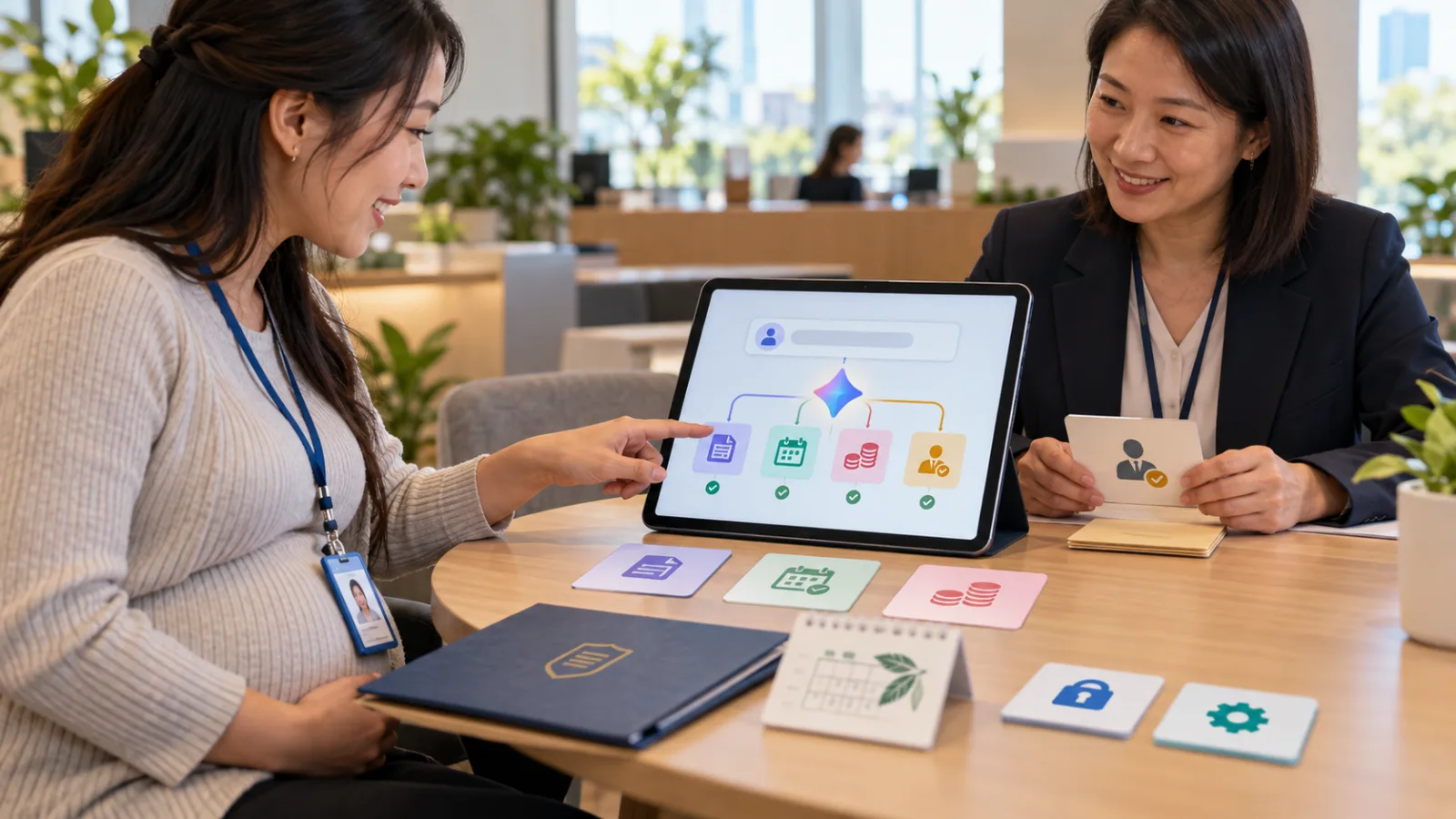
You probably use these apps every day:
Gmail.
Google Docs.
Google Keep.
But the truly frustrating moments are often not:
“I don’t know how to use these apps.”
But rather:
“It’s inconvenient to type right now.”
Maybe you’re:
Walking.
Organizing goods.
Fixing something.
Commuting.
Cooking.
Watching a live event.
And suddenly you think:
“What time did the client say they’d arrive last time?”
“I just thought of a new angle for that proposal.”
“Don’t forget to order these three materials later.”
Before, you might have stopped what you were doing,
opened the app,
searched,
typed,
and organized.
With Google’s new Workspace voice features launched on September 3,
these steps are being cut out.
The features are called:
Gmail Live.
Docs Live.
Keep Live.
The real change isn’t that voice input is easier.
It’s that:
You can now speak directly to your work apps.
How is this different from traditional voice input?
Traditional voice input is like:
You say:
“Meeting with the client at 3 PM today.”
The system turns the speech into text:
“Meeting with the client at 3 PM today.”
That’s basically:
Speech-to-Text.
But Gmail Live, Docs Live, and Keep Live do more like this:
You express a request.
The AI understands what you want to do.
Then, based on the app’s context, it:
Finds data.
Organizes it.
Builds a structure.
And finally creates a usable result.
So it’s not:
Replacing the keyboard with your mouth.
It’s:
Dialogue replacing part of the interaction.
First: Gmail Live—no need to think of search keywords
When looking for an email,
the biggest problem is:
You remember the content,
but not the:
sender,
subject,
date,
or the right keyword to search.
For example, you might recall:
“The airline seemed to send an update about the boarding gate.”
With traditional Gmail Search,
you’d try things like:
airline name,
flight number,
gate,
or date.
Now with Gmail Live, the idea is:
Simply ask.
Like:
“Where is my flight boarding gate?”
Or:
“What school events are happening this week for my child?”
Gmail Live finds the answers in your emails.
And it’s not a one-time Q&A
The part that’s really like live conversation is:
You can ask follow-up questions.
For example, first ask:
“When will the supplier deliver?”
After the answer, ask:
“Did they mention if any parts are missing?”
You don’t need to start over every time with:
“Please search my Gmail…”
The context continues along the same conversation.
This works great for:
People out in the field,
busy with work,
hands occupied,
just wanting info fast.
Gmail Live also provides sources for its answers
According to Google’s Gmail Help,
Gmail Live’s responses include:
Sources.
Meaning the actual emails used.
You can click back to the original message to verify.
This is important because if AI says,
“The client wants delivery Friday afternoon,”
it’s best to check the exact original words before making decisions.
So Gmail Live’s proper role is:
Helping you find emails.
Not:
Creating new facts from email content.
Second: Docs Live—More than just transcribing every word
Docs Live is even more interesting.
You can say things like:
“I want to make a plan for next month’s event.”
Then continue with:
Goals.
Audience.
Details.
Budget direction.
Promotion ideas.
Even just thinking aloud.
Docs Live doesn’t just create a big blob of text.
It builds a:
Structure.
Google’s process doesn’t generate a complete doc right away
The current official Docs workflow is:
You dictate your needs.
↓
Gemini creates an:
Initial Plan.
A document outline.
↓
You review and edit this plan.
For example:
“Remove the competitor analysis.”
Or:
“Add a section on alternative materials.”
↓
After confirming the direction,
you ask,
“Show me the draft.”
Then it generates the first draft.
This design is smart.
It doesn’t force you to:
Say your first sentence,
and instantly get a full document.
Instead, it lets you make sure:
The AI understood you correctly.
Docs Live can also pull in other work-related data
For example, if you’re preparing:
A client proposal,
you can let Docs Live access:
Google Drive,
Gmail,
Google Chat,
and even the web,
to use relevant context.
You might say:
“Based on my client emails and latest meeting notes, draft a project update.”
You don’t need to:
Manually copy text from Gmail.
Open Drive and get files.
Paste everything into a prompt.
Docs Live can use these sources directly during the document creation.
But there’s a very important word here: Permission
Google officially states:
with your permission.
That means you need to allow it.
Having Gmail and Drive doesn’t mean all your data is automatically used every time.
You control:
Source Settings,
to decide which data sources to include.
Good practice is not:
“Write me a plan using all company data.”
But rather:
Only enable the sources needed this time.
For example, writing a client meeting summary
You can choose only:
The client’s emails from this meeting,
the latest notes,
and the current project document.
Without bringing in:
All clients,
past years’ data,
or unrelated chats.
More context isn’t always better.
Relevance matters.
Third: Keep Live—Turning brain dumps into actionable notes
Google Keep has always been great for:
Capturing sudden thoughts.
The problem is:
People’s thoughts aren’t usually in neat lists like:
First point.
Second point.
Third point.
They’re more like:
“Remember to order boxes tomorrow, oh wait also ask Mr. Wang, client might want to change the Friday schedule, and the air conditioner stuff is running low…”
This is a:
Brain Dump.
Emptying your mind.
Keep Live lets you speak freely,
and in the background, it organizes your words into:
Notes.
Lists.
Actionable items.
So it’s different from a voice recorder
A voice recorder just:
Stores exactly what you said.
Keep Live is closer to:
Understanding what you want to remember.
For example, if you say endlessly:
“Buy milk tonight.
Bananas.
Laundry detergent.
Remember to call the client tomorrow.”
AI organizes these into:
Shopping list.
To-dos.
Instead of just leaving you a:
40-second audio clip
that you have to listen to again next time.
These three Live features represent three types of work
It’s easy to remember:
Gmail Live: Find.
I want to find info from existing emails.
Docs Live: Create.
I want to organize scattered ideas and data into a document.
Keep Live: Remember.
My mind has something to note down now, but I can’t stop typing.
All three use voice,
but don’t treat them as the same tool just because they’re voice features.
How is this different from the August 27 Gemini Live?
SasaDaily introduced Gemini Live’s productivity boost on August 27.
That was mainly:
Using voice inside Gemini.
For example:
“Ask Gemini to check Gmail.”
“Listen to Daily Brief.”
“Pass multi-step tasks to Spark.”
Today’s approach is different.
You don’t have to open Gemini first.
Instead, you talk directly to Gmail Live inside Gmail.
Write directly with Docs Live inside Docs.
Drop your brain dump directly into Keep Live inside Keep.
Meaning:
AI is moving from a standalone app into becoming embedded directly in your work apps.
That’s a big difference
Before, working with AI often looked like:
I’m reading emails in Gmail.
↓
Switch to AI app.
↓
Copy and paste the email.
↓
Ask AI.
↓
Switch back to Gmail.
Or:
I have an idea for a plan.
↓
Chat with AI first.
↓
AI writes it.
↓
Paste to Docs.
Now Google wants:
No more moving data around.
Where the work is,
AI shows up there directly.
Who benefits most?
First group:
People whose hands are often busy.
For example:
Technicians.
Store staff.
Photographers.
Kitchens.
Warehouses.
Field workers.
You don’t have to stop working,
wipe your hands,
grab your phone,
and type every time you think of something.
Second group:
People who think of tasks while moving.
Commuting.
Checking stores.
Visiting sites.
On the way to the next meeting.
You can say your thoughts aloud,
instead of waiting until you get back to your desk and forget.
Third group:
People who can talk but get stuck facing a blank document.
Some want to write a proposal,
but stare at Docs for 30 minutes without typing a first sentence.
But ask them:
“What do you really want to do?”
They can talk for ten minutes.
Docs Live is perfect for this kind of user.
But voice doesn't mean you can say everything out loud
Especially in places like:
Offices,
Cafes,
Subways,
or other public spaces.
If your content includes:
Client names,
phone numbers,
internal pricing,
contracts,
medical data,
or company secrets,
you should still consider,
Can anyone nearby overhear?
AI data security is one thing.
Speaking secrets out loud in public is another.
As voice interfaces become more convenient,
basic physical privacy is easier to forget.
Another issue: AI’s organization may not reproduce every word exactly
This especially applies to:
Docs Live,
Keep Live.
Because their real value is in:
organizing.
When AI organizes, it may:
Reorder,
merge,
rewrite,
remove repetitions,
and make spoken language into formal writing.
If you need:
Exact transcripts,
legal texts,
or formal interview records,
don’t treat organized output as a verbatim record.
This is the same advice we gave for Gemini Live Brain Dump before.
What to learn from Docs Live: start with the plan
If you’re trying Docs Live for the first time,
don’t start by saying:
“Write the whole proposal for me.”
Instead, say:
“I’ll tell you all my ideas, first make a document plan, don’t write the full draft yet.”
Then review:
What sections AI created,
what’s missing,
and whether “still considering” has been mistakenly written as “decided.”
After confirmation,
ask AI to generate the draft.
This is more reliable than expecting:
“A polished document in 30 seconds”
right away.
For Gmail Live: always check the sources after asking
For example, if you ask:
“What day did the client shift the meeting to next week?”
The AI might answer:
“Thursday.”
If this affects:
Your travel bookings,
work schedule,
or canceling other plans,
click back to the source email and confirm.
AI saves you from reading ten emails,
not the responsibility of final confirmation.
Keep Live is best for “Don’t forget” moments
Its most practical use might not be:
Writing long articles,
but capturing when you’re busy and just want to say something out loud.
For example:
“Remember to ask the supplier for the new price later.”
“Schedule these three tasks for Monday.”
“The client just mentioned wanting to change the packaging.”
These little things get lost easily every day.
If Keep Live can turn them into notes you can revisit and act on,
it adds great value.
Is this available to everyone now?
Not yet.
Google announced on September 3:
New features will roll out gradually this week.
According to Google’s launch announcement:
Gmail Live:
Available for Google AI Plus, Pro, Ultra.
Keep Live:
Available for Google AI Plus, Pro, Ultra.
Docs Live:
Available for Google AI Pro, Ultra.
Enterprise Google Workspace is progressively adopting the features.
Availability depends on:
Account plans,
admin settings,
rollout status.
If you don’t see the features in your apps yet, it doesn’t mean you’re doing something wrong.
Language limitations
Currently, Google’s official help lists:
English only for both Gmail Live and Docs Live.
That means the experience is primarily in English now.
For Traditional Chinese users,
this update is better understood as:
Google is pushing work apps toward voice-first interfaces,
not that you can fully replace typing with Chinese voice commands yet.
There’s no timeline yet for full support of other languages.
An easy-to-miss setting in Gmail Live
Google notes Gmail Live requires enabling relevant:
Smart Features.
If you’ve previously disabled Gmail’s AI/Smart features,
even with the right account plan,
the full capabilities may not appear.
Work or school accounts also depend on:
admin approval for Gemini Beta access.
So whether new functions show up depends on more than just:
Your paid plan.
It’s one of several conditions.
The real value of voice at work isn’t “typing less”
Imagine a small repair company.
A technician is dismantling a machine.
Suddenly they need to know:
When will the supplier deliver parts?
Before:
Stop working.
Find the phone.
Search email.
Now:
Ask Gmail Live.
Later, the boss thinks:
We should organize a SOP of common faults this month.
Dictates to Docs Live, which first creates a:
document plan.
Finally, the technician remembers:
Order three materials tomorrow.
Speaks to Keep Live,
which turns it into a:
to-do list.
The real saved time is not typing speed.
But:
Not having to pause and leave work all the time.
This is a practical way AI returns time to people
AI doesn’t always need to:
Complete complex tasks for you.
Sometimes the time wasted is:
Stopping what you’re doing,
switching apps,
finding data,
copy-pasting,
typing,
and clicking back.
If voice can reduce these small transitions,
the accumulated time saved daily may outweigh:
Occasional generation of nicely written long texts.
But don’t expect voice AI to make formal decisions right away
For example, asking Gmail Live:
“Which client should I reject?”
Or telling Docs Live directly:
“Decide who to lay off next year based on all company data.”
That’s no longer about:
finding info or organizing ideas,
but about:
high-stakes judgment.
No matter how natural the live interface is,
AI underneath is still AI.
Just because it talks to you by voice,
doesn’t mean it’s more qualified than text-only AI to make decisions for you.
If you get access to the features today, test three small things first
First:
Ask Gmail Live a question to which you already know the answer.
See if it finds the correct email.
Also check the source.
Second:
Speak two minutes of ideas to Docs Live.
Just ask it to make a plan first.
Don’t expect it to complete the document yet.
See how it organizes your thoughts.
Third:
Do a 30-second brain dump in Keep Live.
See which items are:
Merged,
Categorized,
and rephrased.
These three tests quickly show if the tools fit your work style.
What Google really changed is not just three apps
The deeper shift is that:
Computer work used to depend mainly on:
Mouse,
keyboard,
and touch.
Now there’s a new mode:
Conversation.
You no longer need to learn:
Where is that button?
How to write search queries?
How to format documents?
Some tasks you can just say:
“I want to find this.”
“I want to do that.”
“I just thought of something.”
And the app handles the rest.
This may be the real significance of Gmail Live, Docs Live, and Keep Live.
AI’s next step might not be another standalone chatbot,
but rather:
Your everyday tools start truly understanding you.
Today, grow a bit with AI.
Learn one AI skill every day.
Save a little time every day.
Improve a bit every day.
SasaDaily, growing together with you.